
INSIGHTS · 2026
Moving Your Microsoft 365 Off GoDaddy: A Step‑By‑Step How‑To for Central Texas
We guide IT leaders and owners through identity, licensing, data export and import, then DNS cutover with SPF, DKIM, and DMARC sequencing.
If you want to move Microsoft 365 off GoDaddy without losing mail, the short answer is yes, you can, and we do it safely by building a new tenant, staging data, and performing a timed DNS cutover with a low TTL and overlapping delivery. In this region, we plan this around your business hours so Outlook, Teams, and mobile devices re‑authenticate smoothly while your customers still get every message.
We guide IT leaders and owners through identity, licensing, data export and import, then DNS cutover with SPF, DKIM, and DMARC sequencing. We also set anti-spam, Conditional Access, and user permissions before switching MX so mail flows on day one. If you are searching for experts to remove GoDaddy from your 365 environment, our team builds a runbook, rehearses it on a test domain, and keeps a staffed bridge as we validate each step.
What Changes When You Leave GoDaddy and How We Prevent Mail Loss
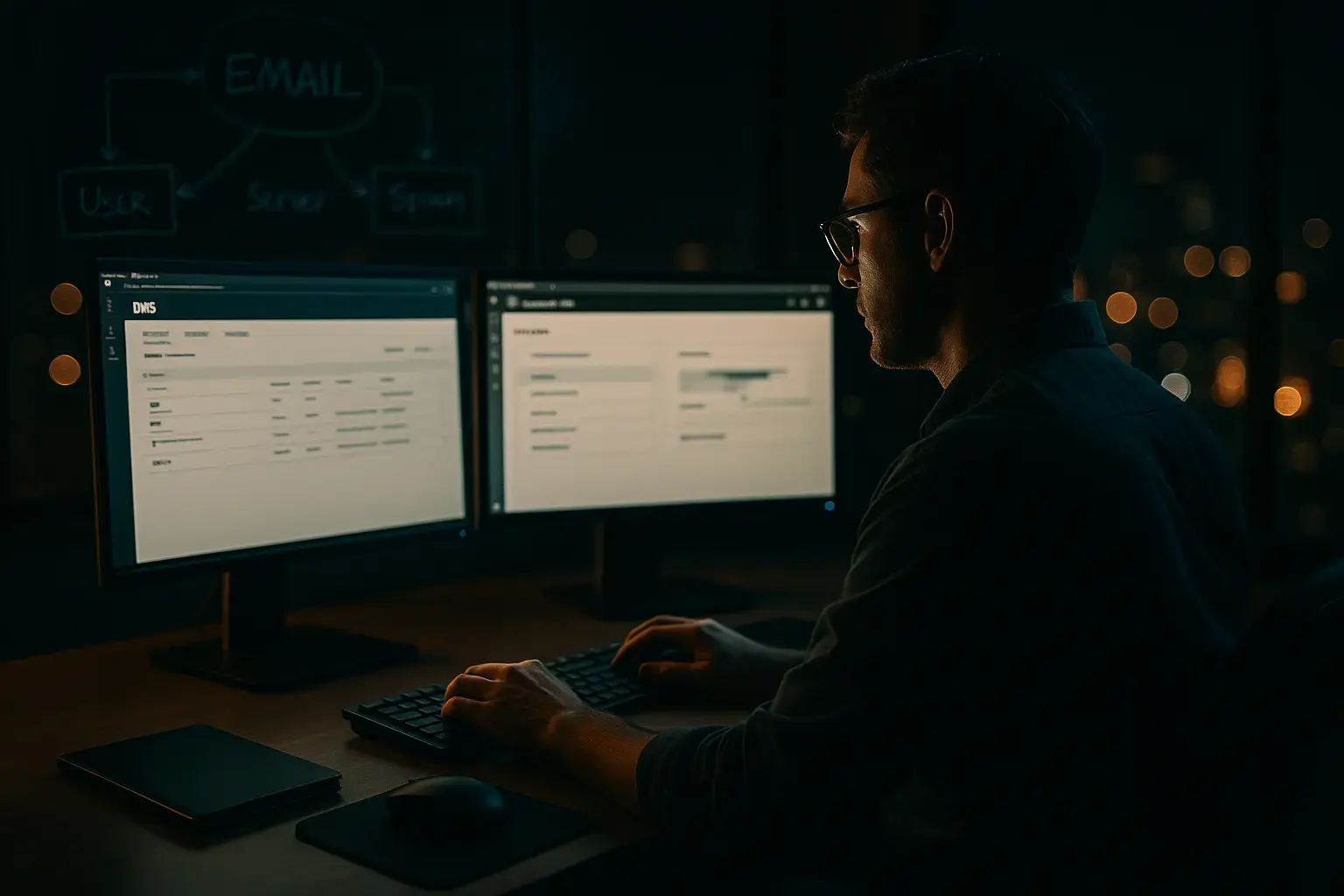
Leaving a bundled 365 offering gives you full control of licensing, identity, and DNS. Your email addresses and data move into a direct Microsoft 365 tenant you own. To prevent lost mail, we stage users and aliases, preconfigure security, test mail to a staging domain, lower DNS TTL in advance, then flip MX in a short window with monitoring and overlap forwarding.
| Area | What Changes After Moving | What Stays the Same |
|---|---|---|
| Identity | You administer a direct Microsoft 365 tenant with your own Global Admins. | Usernames and primary email formats can remain, such as first.last@yourdomain. |
| DNS Control | You manage records at your registrar or an independent DNS host with clear SPF, DKIM, and DMARC. | Your root domain stays the same, and subdomains like mail.yourdomain persist. |
| Licensing Portal | You buy and manage Microsoft 365 licenses directly in the Microsoft 365 admin center. | The apps, Outlook profiles, and familiar workloads remain available after re‑auth. |
| Mailbox Data | Data is imported into the new tenant using supported export/import paths. | Folders, calendar items, contacts, and categories are preserved where exported. |
| Tenant Name | A new tenant name like yourdomain.onmicrosoft.com replaces the bundled variant. | Your public email addresses remain yourdomain.com. |
| Endpoints | Devices re‑authenticate to the new tenant, and Conditional Access applies. | The same laptops, phones, and line-of-business systems continue to work after sign-in. |
Actionable Insight: The only way to avoid lost mail is staged DNS cutover with low TTL and verified mail flow tests before and after switching MX. We validate to a staging domain first, then perform the MX change during a quiet window and monitor queues and non-delivery reports for drift.
- Identity: We assign Global Admins and scoped roles, then decide cloud-only or hybrid.
- Licensing: We map plans like Microsoft 365 Business suites so features stay consistent across departments, then track renewals to minimize overlap costs.
- Admin Roles: We create role-based access for help desk leads and auditors, aligning with your internal controls and change approvals.
- Mail Flow: We configure anti-spam and transport rules, then validate internal and external send/receive paths, plus relay from printers and apps. You can learn more about email filtering and protection best practices.
- Endpoint re‑auth: We plan a short user checklist so Outlook, Teams, and mobile profiles sign in smoothly after the cutover window, with our team ready on the phones.
Why organizations in Central Texas consider the move
- Stronger admin control: Direct tenant control lets your IT leadership configure security and lifecycle policies without extra gatekeepers.
- Licensing flexibility: You can right-size plans per user, then adjust as hiring ramps or projects finish.
- Security controls: Conditional Access, MFA, and alerting are easier to tune when you own the policies end-to-end.
- Compliance alignment: For HIPAA, SOC 2, or CMMC, we align tenant controls with our structured approach in compliance services.
Pre-Migration Checklist: Prove You Own It and Capture the Facts

Before touching DNS, capture a complete inventory. This supports accurate user creation, alias fidelity, and a clean mail import.
Crucial Tip: Export your user and alias inventory before you touch DNS. This is your source of truth.
Practical Example: Using a throwaway test domain to validate the new tenant mail flow before cutover.
- Verify domain registrar access and confirm who can edit DNS.
- Export users, aliases, shared mailboxes, and groups.
- Document forwarding, transport rules, and accepted domains.
- Record SPF, DKIM, and DMARC configurations.
- Capture mailbox sizes and growth patterns to schedule imports.
- Inventory devices, SMTP relays, and third-party apps that send mail.
- Plan a staging domain for pre-cutover testing.
- Align change window and communications plan.
- Primary domains: Your main domain and any vanity or project domains.
- Subdomains: Autodiscover, SMTP relay hostnames, and app-specific entries.
- Users and shared mailboxes: Names, UPNs, licenses, and quotas.
- Aliases and groups: All SMTP addresses and group memberships.
- Forwarding and transport rules: External forwarders, journaling, routing.
- Accepted domains: Authoritative vs internal relay requirements.
- SPF/DKIM/DMARC: Current records and intended targets.
- Mailbox sizes: Large mailboxes get overnight imports.
- Devices and relays: Printers, scanners, apps on port 587.
- Third-party apps: CRMs, ticketing, and alert systems that email customers.
Ownership, access and security prerequisites
- Registrar access: Confirm who controls DNS, enable change approvals, and ensure contact info is current.
- Global Admin rights: Ensure you have full admin in the source and target tenants.
- Backup plan: Stage backups for critical mailboxes with data backup and recovery.
- MFA enabled: Secure admin sign-ins before you start, including authenticator apps.
- Contact verification: Update domain registrant email and phone so transfer or record changes are approved quickly.
- Ownership docs: Keep legal domain ownership records handy for verification steps.
Key Takeaway: Lower TTL 24 to 48 hours ahead so MX switches propagate quickly during cutover.
Licensing and feature mapping
- Current plan details: Note current licenses and any add-ons users rely on.
- Target plan mapping: Choose equivalent Microsoft 365 plans to maintain features.
- Security parity: Ensure MFA, Conditional Access, and anti-phish policies will be available and enabled.
- Mailbox size thresholds: Confirm target mailbox quotas match needs.
- Renewal dates: Time the move to reduce overlap and avoid surprise renewals.
Step 1: Build the Target Microsoft 365 Tenant and Secure It

Set up the destination tenant first. Add the domain, secure admin access, and establish baseline policies. Turn on auditing before importing any data. This foundation gives you clean logs and predictable behavior when users sign in after the DNS change.
| Setup Task | Why It Matters | Validation |
|---|---|---|
| Tenant creation | Establishes your independent Microsoft 365 environment. | Confirm admin portal access and tenant ID. |
| Custom domain addition | Allows mail to address yourdomain.com. | TXT verification resolves successfully. |
| Admin roles | Enforces least privilege for IT staff. | Role assignments show correctly in Azure AD. |
| MFA/Conditional Access | Protects admin and user sign-ins. | Test interactive sign-in with MFA. |
| Security defaults | Provides baseline protection if you do not use custom policies. | Confirm policy state in Azure AD portal. |
| Audit logging | Captures actions and mailbox events. | Verify log entries after test actions. |
| Anti-spam policies | Controls inbound filtering and phishing defense. | Send test messages from external accounts. |
| DKIM keys | Enables signed outbound mail. | Selector1 and selector2 publish and validate. |
| Branding | Reduces spoof risk and user confusion. | Users see your logo on the sign-in page. |
Actionable Insight: Turn on audit logging and secure default policies before any mailbox import to capture activity trails.
- Create tenant: Register your Microsoft 365 tenant and secure the admin account.
- Add domains: Add your domain and a staging domain, verify via TXT.
- Create admin accounts: Establish named admins, then remove daily work from the break-glass account.
- Enable MFA: Require MFA for admins and pilot users.
- Set baseline security: Implement Conditional Access and anti-spam with our cybersecurity guidance.
- Prepare training: Queue a short user refresher with security awareness training.
Identity model: cloud-only or hybrid
- Cloud-only simplicity: Fewer moving parts, faster deployment, and easy password changes.
- Hybrid with directory sync: Keeps on-premises Active Directory as the source of truth.
- Password writeback: Enables users to reset passwords that sync back on-prem.
Key Takeaway: Decide identity early, it drives user creation and sign-in experience post-cutover.
Step 2: Recreate Users, Groups, and Mail Objects
Rebuild users, shared mailboxes, groups, and resources with the exact aliases and permissions you inventoried. This ensures that when data lands in target mailboxes, replies and calendar sharing behave correctly.
Practical Example: Map a department shared mailbox with send-as and send-on-behalf permissions before data import to prevent NDRs.
- Create users and assign licenses: Match mailbox sizes and features.
- Build shared mailboxes: Set ownership and delegates first.
- Distribution lists and security groups: Mirror memberships you exported.
- Resource mailboxes: Rooms and equipment with booking policies.
- Aliases and primary SMTP: Ensure the right primary address for each user.
- Delegate permissions: Send-as, send-on-behalf, and full access as needed.
- Regional settings: Time zone, language, and date formats.
Service accounts and SMTP relays
Printers, scanners, and line-of-business apps must keep sending mail the minute we flip MX. Plan out each relay host, port, and authentication method.
- App password alternatives: Prefer modern auth or secure relay over legacy approaches.
- SMTP AUTH considerations: Enable only where required, and scope tightly.
- IP allow list: Use authenticated client submission or a trusted relay with allow lists.
- Port 587 with TLS: Standard for authenticated submission to Microsoft 365.
- Staging mailbox tests: Validate with a test recipient before cutover.
Crucial Tip: Stage a relay test before MX cutover so devices can send the first minute after migration.
Step 3: Export Mail, Calendar, and Contacts from the Source
Use supported export paths. For many teams, a mix of Outlook PST export and admin export options works well. Plan the schedule, prioritize large mailboxes, and confirm you can resume interrupted exports without data gaps.
Key Insight: Throttle policies and client-side cache can slow exports, plan staggered exports for large mailboxes.
- Outlook PST export for user data: Works well for user-driven mail, calendar, and contacts.
- Admin eDiscovery export where licensed: Allows bulk export with richer filter control.
- IMAP export for basic mail: A fallback for mail only, not calendar or contacts.
- Shared mailbox export strategy: Export with delegated access and capture permissions.
- Calendar sharing capture: Record existing sharing and publish settings to reapply.
Retention, legal hold, and compliance considerations
- Preserve records: Confirm retention rules before anything is deleted or moved.
- Document retention needs: Map policies to your departments, then apply in the target.
- Coordinate legal hold with counsel: Ensure holds remain intact throughout the move.
- Export chain of custody: Track who exported what and when.
- Validate after import: Confirm items under hold remain accessible as required by your policy and compliance approach.
Step 4: Import to the New Tenant and Validate
With the tenant secure and objects created, import data in planned batches. We start with leadership and shared mailboxes, then import remaining users. Validate as you go to catch gaps early. We also prepare a restore plan with data backup and recovery in case users need point-in-time retrieval.
| Validation Area | What to Test | Pass Criteria |
|---|---|---|
| Mailbox access | User sign-in to Outlook and OWA. | Mailbox opens, folders visible, no unexpected prompts. |
| Send/receive internal | User sends to a coworker. | Message arrives immediately in both directions. |
| Send/receive external | Use staging domain, test from personal email. | Message accepted, appears in Inbox, correct DKIM signature. |
| Calendar permissions | Assistants access exec calendars. | Free/busy and details match expected rights. |
| Mobile device sign-in | iOS/Android mail apps re‑auth. | Account adds successfully, mail syncs fully. |
| Security policy application | Conditional Access and MFA. | Policies trigger, logs capture sign-ins. |
Actionable Insight: Import largest mailboxes first overnight, then smaller mailboxes during business hours to minimize impact.
- Create import batches: Segment by size and department.
- Apply mailbox permissions: Confirm send-as and full access before user sign-in.
- Verify folder counts and sizes: Spot-check against export logs.
- Spot-check critical mailboxes: Executives, sales, finance, and shared mailboxes serving customer support.
- Stage mobile profiles: Provide users a day-one checklist for re‑auth.
Anti-spam and security baselines before MX cutover
Align spam filtering, anti-phish, and outbound signing before you flip inbound mail. This keeps brand reputation intact across customer threads.
- Anti-spam policies: Create and test a balanced policy set. Reference our email spam protection guidance.
- Safe senders: Populate known trusted partners.
- Anti-phish settings: Enable advanced impersonation protection.
- DKIM key publish in advance: Get keys live before outbound begins.
- Baseline Conditional Access: Require MFA outside known locations.
- Alerting and auditing: Verify notifications for risky sign-ins with our cybersecurity playbooks.
Key Takeaway: Publish DKIM for the target tenant before switching MX so signed mail is trusted immediately.
Step 5: Perform the DNS Cutover Without Losing Mail
This is the high-risk step, so we prepare a runbook, a staffed bridge, and a rollback checkpoint. With TTL reduced in advance, the MX flips quickly. We keep the source mailboxes live for a short overlap, monitoring queues so any stragglers route to the new tenant.
Crucial Tip: Keep the old tenant mailboxes alive for a short overlap so any straggler messages delivered during TTL drift can be forwarded to the new tenant.
- Set low TTL ahead of time: Lower to speed propagation.
- Publish target SPF with include statements: Ensure outbound aligns when apps send mail.
- Publish target autodiscover and CNAMEs: Point clients to the correct endpoints.
- Update MX to new tenant: Execute during your quiet window, with a bridge call staffed by our team.
- Verify inbound via external test: Send from multiple providers to confirm delivery.
- Update DMARC policy after validation: Keep at monitoring first, then tighten once stable.
- Monitor NDRs and queues: Watch for drift and fix aliases or connectors quickly.
- Cut SMTP relays to new settings: Switch printers and apps to 587 with TLS.
SPF, DKIM, and DMARC sequencing
- SPF flattening considerations: Keep SPF within practical limits and avoid record bloat.
- Dual DKIM during overlap: Publish new DKIM and maintain old until the switch is final.
- DMARC at monitoring first: Start relaxed to collect reports and tune.
- Raise to stricter policy after confidence: Enforce only after a clean week of signals.
- Check alignment on outbound: Validate alignment for executive and marketing sends.
Actionable Insight: Start DMARC in monitoring mode so you can adjust legitimate senders before enforcement.
What to Do After Cutover: Devices, Apps, and Training
The first 48 hours focus on endpoint sign-ins, shared mailbox access, and revalidating app integrations. We coordinate your help desk comms and provide bite-sized guides. For call flows, we also sanity check VoIP voicemail-to-email settings that rely on SMTP.
Practical Example: A 10-minute user checklist for Outlook, Teams, and mobile mail sign-in on day one.
- Re-authenticate Outlook profiles: Prompt users and clear old credentials.
- Clear autodiscover cache: Remove stale records that point to old endpoints.
- Sign in to Teams and OneDrive: Confirm file sync and chat continuity.
- Update mobile profiles: iOS and Android mail apps may need account removal and re-add.
- Verify shared mailbox access: Assistants and departments confirm send-as.
- Retest printers and apps: Validate SMTP relays and ticketing alerts.
- Communicate change advisory: Share a simple guide via the help desk.
Hardening and ongoing operations
- Conditional Access refinement: Iterate policies as users settle.
- Least-privilege reviews: Remove temporary admin roles after the move.
- Mailbox auditing reports: Review delegate actions and inbox rules.
- Quarterly vCIO roadmap on vCIO: Plan governance, lifecycle, and licensing optimization.
- Backup configuration on data backup and recovery: Verify scheduled protection of mail and files.
Key Takeaway: Stabilize first, then iterate security and governance in weekly sprints.
Common Pitfalls and How to Avoid Them
Key Takeaway: Data integrity and DNS timing are the two levers that determine a clean cutover.
- Skipping inventory: Leads to missing aliases and NDRs.
- Not lowering TTL: Causes long propagation and unpredictable delivery.
- Missing aliases: Users lose inbound mail on secondary addresses.
- Forgetting SMTP relays: Printers and apps stop sending after MX change.
- Moving DKIM too late: Signed mail fails alignment temporarily.
- Leaving DMARC enforcing early: Legitimate senders get rejected.
- Neglecting shared mailbox permissions: Teams lose access on day one.
Runbook sample for day-of cutover
- Final delta export: Capture last-minute changes and calendar updates.
- MX change: Flip records during agreed window.
- Validation tests: Inbound, outbound, calendar, mobile, and relay checks.
- User comms: Send day-one checklist and support contacts.
- Issue log: Track, triage, and resolve quickly on the bridge.
- Rollback checkpoints: Predefined criteria and steps if needed.
Your Top Questions About Moving Microsoft 365 Off GoDaddy
We hear the same few concerns from teams making this change. Here are straightforward answers so you can plan with confidence.
- Will I lose old emails? No, not if we export and import completely and verify folder totals before DNS cutover. We also keep source mailboxes alive briefly to forward any late arrivals during TTL drift, then confirm with spot checks across leadership, finance, and support queues.
- How long does DNS take? With a reduced TTL applied in advance, MX changes propagate quickly. We still monitor queues, DMARC reports, and user tests in that first hour to ensure inbound and outbound settle correctly.
- Do users need to reset passwords? It depends on your identity model. In cloud-only, users may simply re‑authenticate. In hybrid, passwords stay managed by on-prem AD, so sign-in continues with the same credentials after profiles refresh.
Actionable Insight: Schedule cutover at a low-traffic window and keep a staffed bridge line for the first hour.
Where Titanium Computing can help
- Remote-First, $95/user/mo: For offices that rarely need on-site help. See our tiers at pricing, and tie-in managed IT, cybersecurity, and email protection.
- Complete, $125/user/mo: The full stack plus scheduled on-site visits. Details at pricing.
- Compliance+, $155/user/mo: HIPAA, CMMC Level 2 and SOC 2 audit-ready. Explore pricing.
Practical Example: Coordinated migration weekend with our help desk bridging user sign-ins and app testing.
You do not have to face this alone. Migrating mail and identity while keeping business moving should not be a burden. Titanium Computing builds the runbook, executes the cutover, and stays with you through stabilization, then we help you harden and govern your new tenant. Start with a free planning session at https://titaniumcomputing.com/free-consultation/